PlatformIO for Arduino on Linux Command Line

So I had a challenge that required me to keep running up and downstairs as I was troubleshooting a new project. I’m having a problem with a temperamental water heater and decided to monitor it remotely. I have a photo-resistor taped to the water heater’s status LED and I use an Arduino Nano to capture and time the LED flashes and gaps. Then I send the results out the Nano’s USB interface to a Linux server I have running in the basement, conveniently close to the water heater.

Not having a laptop, I was using minicom to watch the USB traffic remotely from my desktop on the main floor of the house. Based on my observations of the USB traffic and minimal documentation on the Honeywell WV4460 temperature control, I’d come up with a programming change, take the stairs to the basement, disconnect the USB, pull the Nano and trek back upstairs to reprogram and flash it. While this started to become a chore, things got a little better as I employed a second Nano I had laying around. Now I’d reprogram the second board and just swap them. I still had to run up and down the stairs, but other than the device port changing every time I swapped out a board, it was a bit easier.

About the 10th trip back downstairs I had a thought. (First I thought – how many times is this gonna take to get it right…) My next thought was recalling that a while back I installed PlatformIO and Atom on my windows machine just to take it for a spin programming ESP8266 boards. Since it’s supposed to work with Arduinos and run on Linux so I wondered if it had a CLI. (My Linux server is CLI only with no GUI). Sure enough, it did and since I already have pip installed –
Sudo pip install -U platformio

The directory layout under Linux is the same as on Windows so I created an Arduino workspace named wheat_v3 (for WaterHEATer version 3) and initialized it.
cd ./wheat_v3
platformip init
platformio init --board=nanoatmega328

I then created a main.cpp in the src directory and did a quick copy/past of the Arduino native code, made some minor changes and saved it. Then from the ./wheat_v3 directory this is what my edited platformio.ini looks like:

[env:nanoatmega328]
platform = atmelavr
board = nanoatmega328
framework = arduino
upload_port = /dev/ttyUSB1

I ran platformio run –target upload a few times and cleaned up a few errors. Once the issues were cleaned up I got a clean compile and upload! Now each time I need to make a change to the code on the Nano I just kill the server side application to release the USB port and compile/upload. This is so fast and easy you’ll love it if you’re interfacing a micro-controller with Linux.

Raspberry PI GPIO

Raspberry Pi connected to a breadboard with LEDs and resistors.

On Raspberry PI I use the WiringPi library for both C and Python development. Below is an example of cycling through three GPIO pins to light up a set of LEDs.

  • GPIO 17 – Pin 6 maps to the WiringPi logical pin 0
  • GPIO 22 – Pin 7 maps to the WiringPi logical pin 2
  • GPIO 27 – Pin 7 maps to the WiringPi logical pin 3
[code lang=”c”]#include int main (void) { int offset; offset = 100; wiringPiSetup () ; pinMode(0, OUTPUT); pinMode(2, OUTPUT); pinMode(3, OUTPUT); for (;;) // Loop continously { digitalWrite (0, HIGH) ; delay(offset); // delay ‘offset’ miliseconds digitalWrite(0, LOW); // turn off 0 digitalWrite(2, HIGH); // turn on 2 delay(offset); digitalWrite(2, LOW); // turn off 2 digitalWrite(3, HIGH); // turn on 3 delay (offset); digitalWrite(3, LOW); // turn off 3 } // Loop back and start over return 0 ; }[/code]

Compile using gcc:

#gcc gpiox.c -o wp gcc wpiox.c -o wp -lwiringPi

The ‘-lwiringPi’ tells the gcc compiler to use the wiring Pi library. Then run using…
#./wp

And watch the LEDs flash…

Wireless RFM69HW – Part II

Gateway Node

The weekend is here and another chance to start poking around with my new RFM69HWs. Here’s my plan. I initially want to get the gateway node connected to a Raspberry PI in my basement via I2C. (I know, there’s probably an easier way, but, hey – I’m doing this for fun and to get better understanding of how I can leverage these boards.) The Pi should be able to poll the gateway periodically to get updated temperature data. I’ll figure out the logging later, by MySQL and a basic graph should give me a good view.

Close-up of a labeled circuit board with various pins and components.Connecting the Anarduino Gateway (GW) to the Pi is pretty straight forward. The GW uses 3.3VDC which is available on Pin 1 of the Pi. The I2C pins on the Pi are close by as well on Pin 3 and 5 with a GND pin just down the way at Pin 9. You can see in the image on the right that the 3.3 VIN and GND pins are on the same side as the analog pins; that makes wiring easy. In the following table I’ve laid out the pin mapping between the Anarduino and the Raspberry PI.

[table “T1” not found /]

The heart of the code for the gateway is very compact. Lines 7-9 initialize the board with the defined frequency, network and node ID. These are configured with #define statements. In this case the board is 433 mhz, the networkID is 100 and this node is set as 2.


#define NODEID 2 // GateWay - each node must be unique
#define NETWORKID 100 // Same on all nodes that talk to each other
#define FREQUENCY RF69_433MHZ

[ccN lang=”c”]
void setup() {
Serial.begin(9600);
delay(10);

// RFM69HW setup
Serial.println(“RFM69HW config and setup…”);
radio.initialize(FREQUENCY, NODEID, NETWORKID);
radio.setHighPower(); // only for RFM69HW!
radio.encrypt(null);
Serial.println(“RX at 433 Mhz”);

Serial.print(“GPIO and I2C config and setup…”);
Wire.begin(SLAVE_ADDRESS); // initialize i2c as slave

// define callbacks for i2c communication
Wire.onReceive(receiveData);
Wire.onRequest(sendData);
Serial.println(“\nReady.”);
}

void loop() {
char inData[10];

if (radio.receiveDone())
{
memset(inData, 0, 10);
Serial.print(“#[“);
Serial.print(radio.SENDERID, DEC);
Serial.print(“] “);
for (byte i = 0; i < radio.DATALEN; i++){ Serial.print((char)radio.DATA[i]); inData[i] = (char)radio.DATA[i]; } if(inData[0] == 'T') strcpy(cT, inData); if(inData[0] == 'B') strcpy(cB, inData); Serial.print(" [RX_RSSI:"); Serial.print(radio.RSSI); Serial.print("]"); if (radio.ACKRequested()) { byte theNodeID = radio.SENDERID; radio.sendACK(); Serial.print(" - ACK sent."); } Serial.println(); } } [/cc] Lines 30-37 handle data from the remote node. Temperature data is prefixed with 'T' and battery data with 'B'. Both are stored and delivered to the Raspberry Pi on I2C request. Next let's look at the remote node.

Remote (Sensor) Node

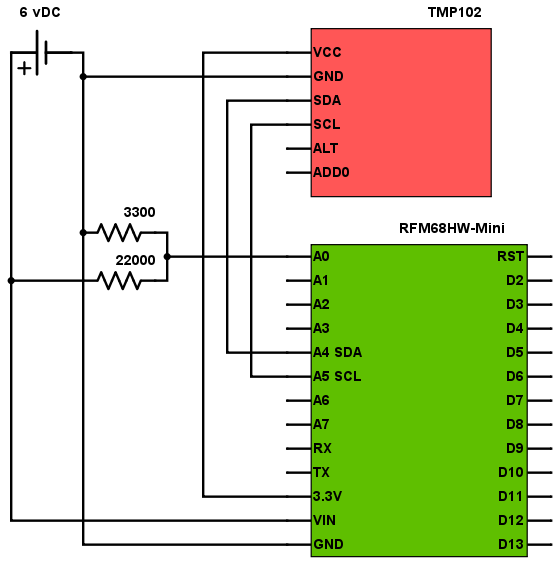
Last week I added an antenna to each of the boards. This week I’ll design and build the remote temperature sensor. I selected a SparkFun TMP102 sensor; it’s small, fast and easy to work with. Because the remote node will be running on battery, I also wanted to add the ability to monitor the current battery output so I can (1) know when I need to replace the batteries but also (2) so I can optimize the configuration of the board to maximize battery life.

Circuit diagram showing TMP102 temperature sensor connected to RS485 module.
RFM69HW Anarduino Mini with TMP102 Sensor

The two resistors act as a voltage divider with the resulting voltage compared to the internal 1.1v reference. Other than that you can see the connections are pretty straight forward with the I2C SDA and SCL pins connected between the sensor and the Anarduino.

Power consumption proved to be an issue as the remote node was rapidly chewing through the battery. I found a library (LowPower.h) that looked pretty good and installed it. SO far I’m seeing good results. Here’s the headers for the node:

Setup if pretty sparse with the reference voltage set to INTERNAL – 1.1v and the RMF69HW is configured. Because I’m not overly concerned about the privacy of temperature data I’ve set encryption off, however it’s nice to have this feature available. The RFM69HW supports a high-power mode which I’m using.

Wireless RFM69HW – First Steps

Close-up of a labeled circuit board with various pins and components.A week ago I got a set of HopeRF Anarduino Mini RFM69HW boards in the mail. These boards are similar to an Arduino Pro Mini but have a RFM69HW wireless module mounted on them. They’re reportedly 100% Arduino IDE compatible and run at 8Mhz. The 6-pin header interconnect is an unpopulated set of six IO interfaces for FTDI type USB to UART (or similar) module or cable. The board also supports all the GPIOs you’d find on a similar Arduino board plus two additional analog pins, A6 and A7. You can see on the image here the FTDI headers and the four GPIO pins I’ll be using.

First things first, I soldered a set of straight male pains on the two GPIO interfaces and a set of 90 degree pins on the FTDI interface. After downloading and installing the RFM69 libraries I was ready to go. Then I connected a SparkFun FTDI 3.3VDC Basic Board to the FTDI interface, plugged in a USB cable and fired up the Arduino IDE. Worked like a charm.

On the 1.6.4 version of the Arduino IDE you have to select the board, the processor and COM port. Initially I tried the Arduino Mini with no luck. After poking around on the internet I found a recommendation for using an Arduino Pro Mini setting and that did the trick. Once the IDE recognized the board I was able to compile and upload a demo program and soon had the two devices talking across the wireless link. However, as is normally the case with me and new hardware, there was a small problem.

The RSSI was running in the -110db to -115db range; not great if you want any distance at all. As I moved them more than a few feet apart the signal was lost. Like I said, not a good situation. I tried different orientations but they provided only meager success. With more poking around on the Internet I came across information on installing an external antenna. I ended up cutting a section of 24 ga solid core copper wire to 6 and 13/16th inches and soldering it into the antenna connection pint on the board. Wow, did that do the trick! I’ll get some more detailed information on that later. The short version is that it worked.

RSSI climbed to -10db and I was able to move the client node outside the house with no issue. Even at a distance of ~40’ though multiple walls I’m seeing -45db. Next step is adding a TMP102 sensor and battery pack to the setup. More to come.

Italy – Day 1

Woman in red jacket standing at an outdoor café with empty black metal tables and chairs.We arrived in Rome on Saturday, March 24th right on time (7 am). After picking up our luggage we were met by Marco from Rome Connection and 2 eight-passenger vans. They took us right to our hotel, The Casa Bonus Pastor. There the friendly desk clerks were able to help us secure our luggage in a small room while we were fed our first Italian breakfast (yogurt, rolls, some with powdered sugar, some plain), and strong coffee with steamed milk. There was also a nice cold juice (apricot or mango?).

Some rooms were ready early, so we were able to put our luggage in our rooms and get ready for a walking tour with Barbara. I was able to purchase two postcards at the front desk with postage (about €1.2 for each stamp). Then, we walked as a group downhill to the Vatican area.

It was a beautiful day, sunny and warm. We agreed to meet at 2:00 at a specific spot inside the walls. Tim and I wandered out of the Vatican toward the Tiber River. Fortunately, we had a fairly detailed map.

We walked down to the Umberto Bridge and crossed over the river. The river appeared shallow and we saw no boats or traffic on it. We just wandered the narrow streets, looking in shop windows and looking for a place to grab some lunch. We found a nice restaurant with outdoor seating right at an intersection. Most of the traffic was foot traffic, with an occasional moped or motorbike. Since we were just looking for something light, Tim ordered a pizza, I had some pasta and vegs.

While we were eating a violinist came by, spoke to the maître d’ and apparently got permission to entertain. He played a song or two and then walked around with his hand out. We gave him a Euro.

Continue reading Italy – Day 1